EE 379K.19 PRE-LAB 2
Team 2
PLAN OF ACTION TO:
- Set an Internet Protocol (IP) address
and associated subnet mask for both of your team’s PCs.
- Go to the Control Panel under the Start button on your PC.
- Go to the Network Connections icon.
- Go to the network connection that you will be editing.
- Go to Connection Properties.
- Click on Internet Protocol(TCP/IP).
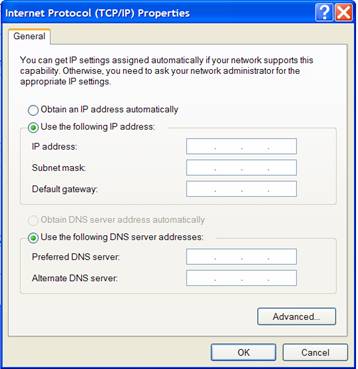
- Click on Use the following IP address.
- Enter IP address 192.68.0.1 (for first PC, 192.68.0.2 for second PC) and subnet mask 255.255.255.0.
- Repeat steps one to seven for the second PC.
- Connect one of your team’s PCs with
another via the PC’s Ethernet interfaces and a repeater hub.
- Connect one end of an Ethernet cable to the first PC’s Ethernet port.
- Connect the other end of the Ethernet cable to one of the repeater hub’s ports.
- Connect one end of a second Ethernet cable to the second PC’s Ethernet port.
- Connect the other end of the second Ethernet cable to another of the repeater hub’s ports.
- Make sure your repeater hub is powered on.
- Demonstrate connectivity between the
PCs using the ping
command.
1. Go to the Run icon on the Start button of one of your group’s PCs.
2. Type in “cmd” on the text box under the Run menu and press OK to start the DOS command window.
3. In the DOS command window type ping <address>, where address is the IP address of the PC you are attempting to communicate with.
4. Wait for the DOS command window to show the status of your communication attempt. If you receive a reply from the PC’s IP address that you are trying to communicate with, then that indicates that you have successfully established a network connection between the two PCs.